
TorrServer - personal streaming service for movies and TV series
TorrServer is a free and open software package used for downloading and instant streaming viewing of movies and TV series from torrent files on home TV, phone or computer.
Deploying TorrServer in a few minutes
First, let's prepare a server with the installed TorrServer package. This can be done in two different ways. You can choose the most suitable one for you.
Purchasing the necessary plan with pre-installed TorrServer
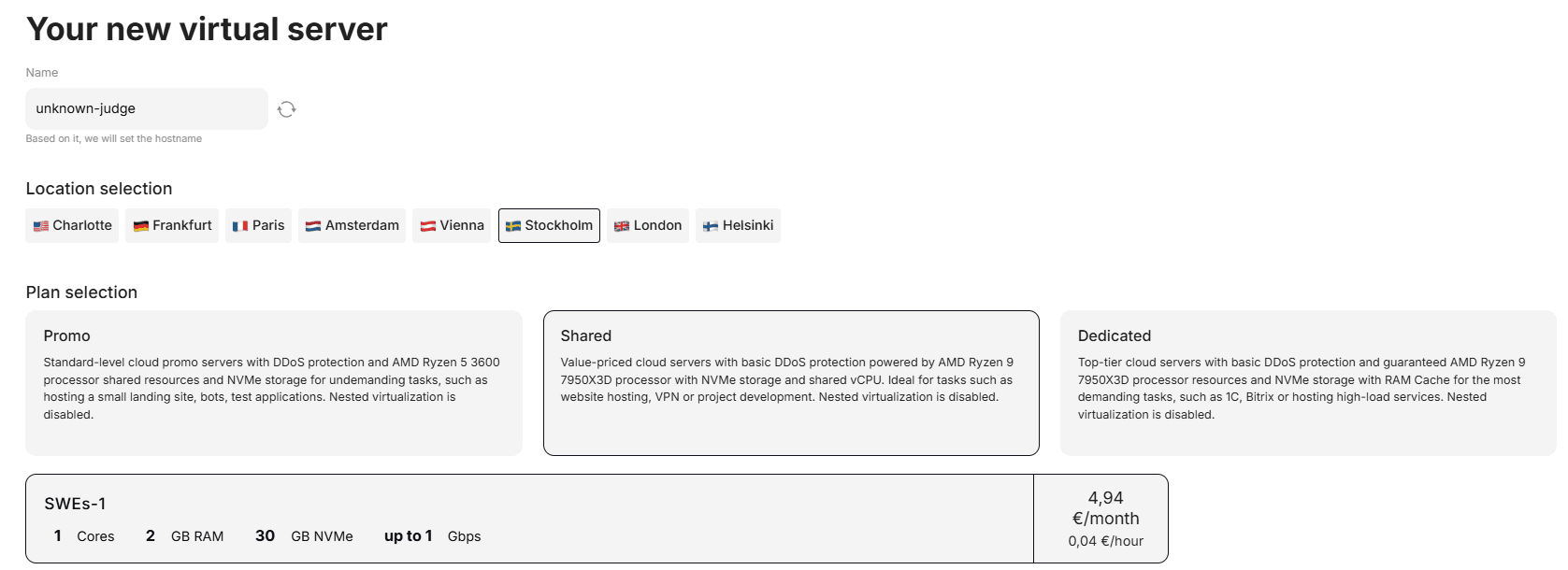
For this, we need to buy the necessary server in the desired location. In our case, it will be the basic plan PARs-1 in Paris:
Go to the "Pre-installed Software" section:

Specify the TorrServer script we need:
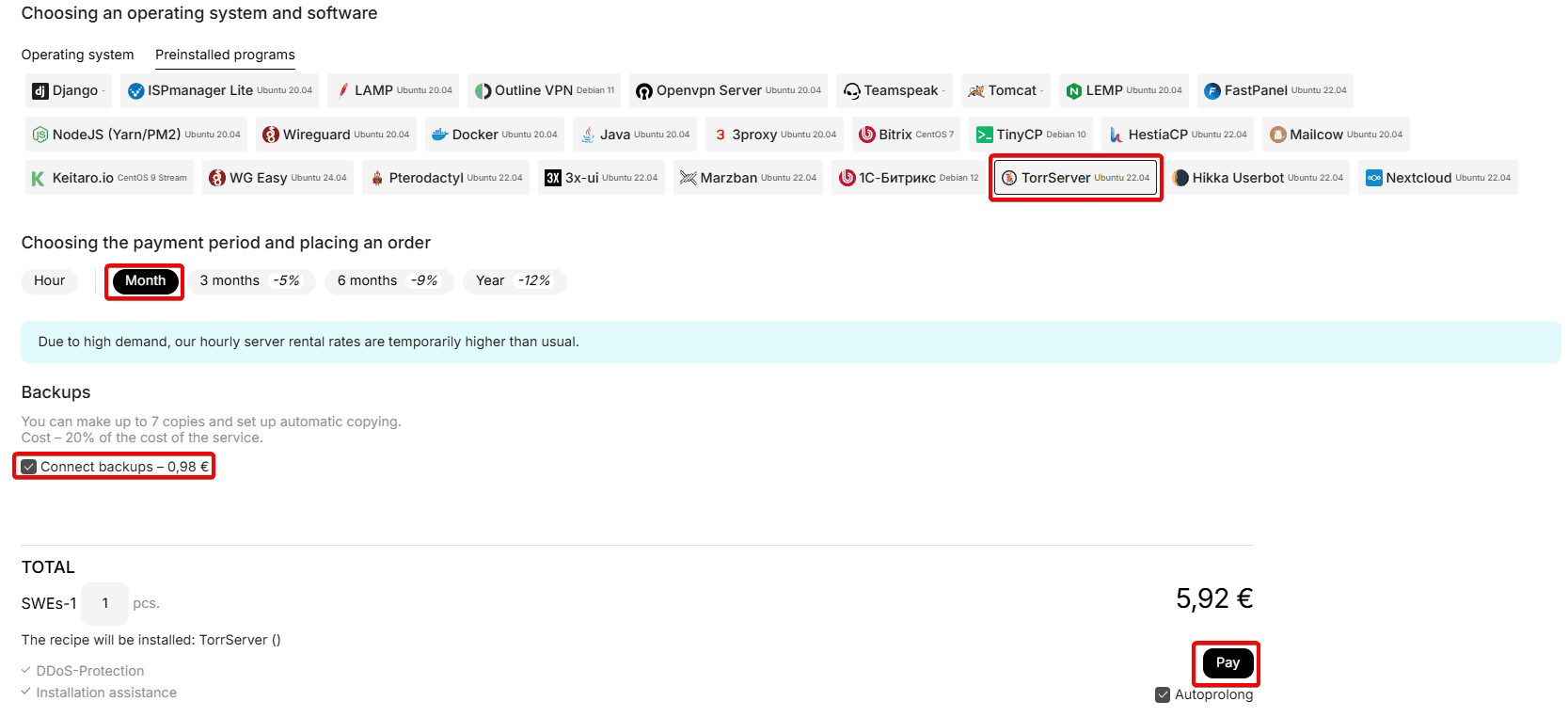
OS installation will be performed according to the OS specified in the pre-installed software script, in this case Ubuntu 22.04 + TorrServer will be installed
Set the desired rental period by hours or months, disable the "Backups" service if necessary and click the pay button
Great. Now after activating your server, you will be able to access the TorrServer panel. We will tell you about this in more detail in point 2 ("Accessing the TorrServer panel").
Reinstalling an existing server with TorrServer script installation
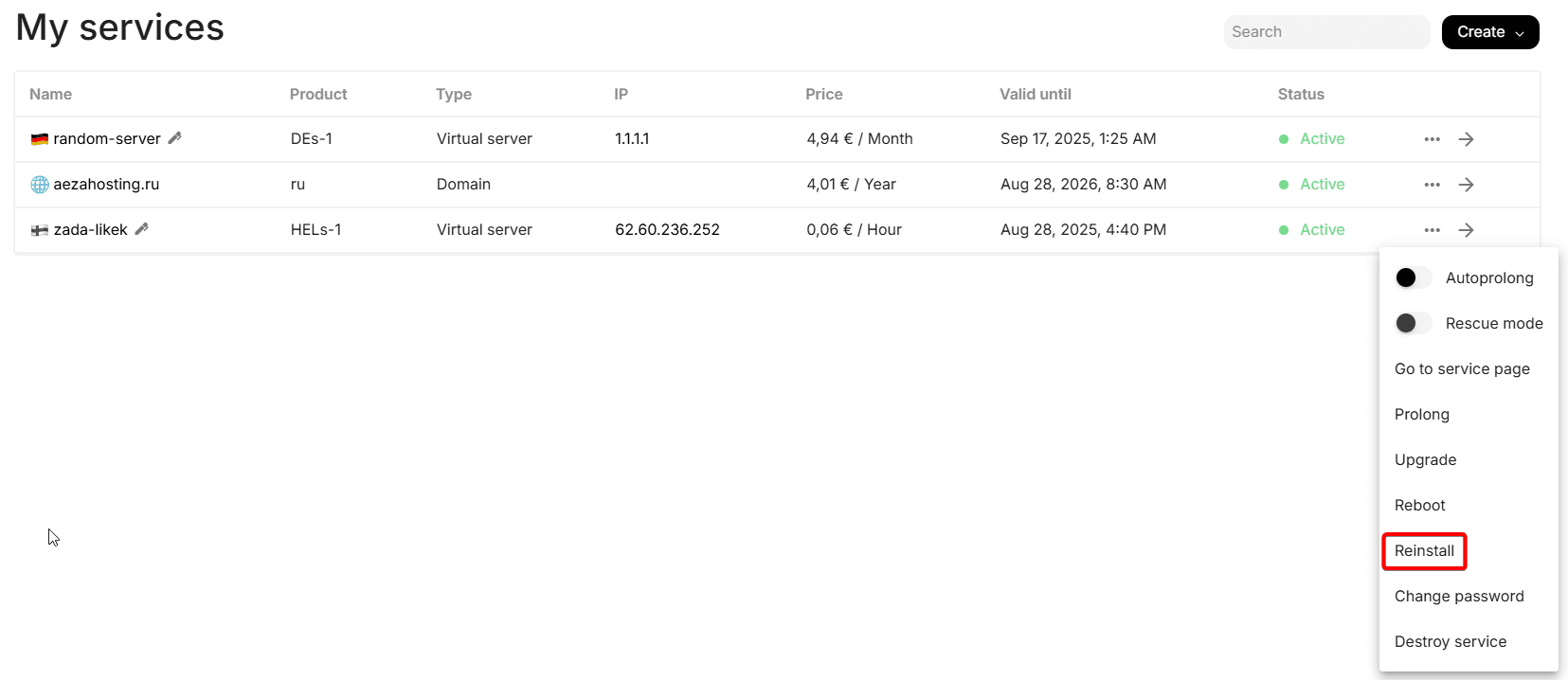
Go to the services section and click the three dots icon to the right of the already purchased server, select the reinstall option:
You will see this menu, in which we will go to the "Pre-installed Software" tab:
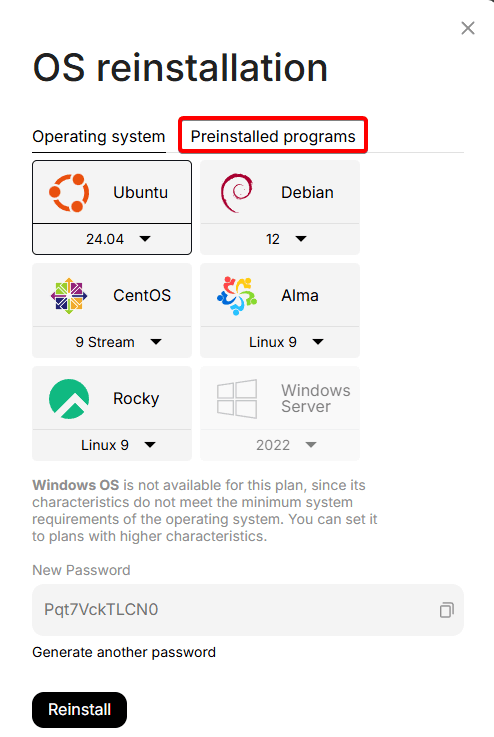
Select the TorrServer script, specify the new server password, click Reinstall:
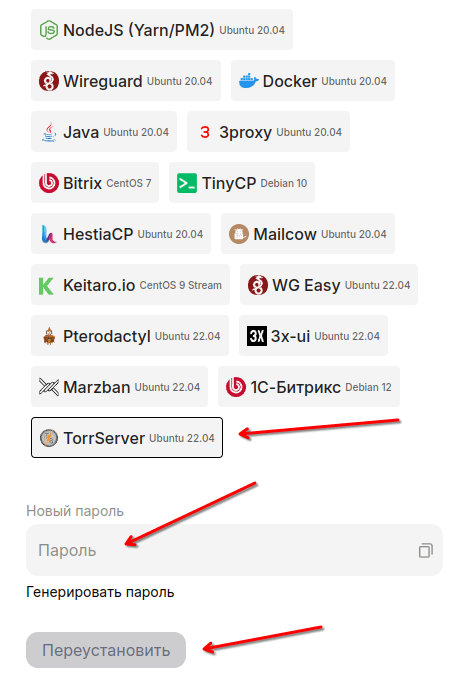
OS reinstallation will be performed according to the OS specified in the pre-installed software script, in this case Ubuntu 22.04 + TorrServer will be installed
Now after reinstalling the OS on your server, you will be able to access the TorrServer panel. We will tell you about this in more detail in point 2 ("Accessing the TorrServer panel")
You can also contact support for help installing this software.
Accessing the TorrServer panel
Connect to the server in any convenient way (via SSH or FTP), for example, through PuTTY, WinSCP or command line, with the IP, login and password from your personal account, or letter from your email. The detailed procedure for connecting to the server is described in our article.
In the root directory of the server we need to find the "TorrServer.log" file with data for connecting to the TorrServer panel and view them, the path to the file: /root/TorrServer.log
When connecting through an FTP client, it's enough to simply open the /root/ directory and then open the "TorrServer.log" file.
If you connect via SSH, you can quickly and conveniently output data from the file with the command:
cat /root/TorrServer.log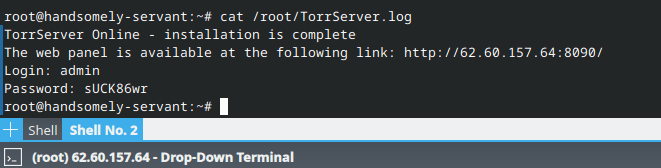
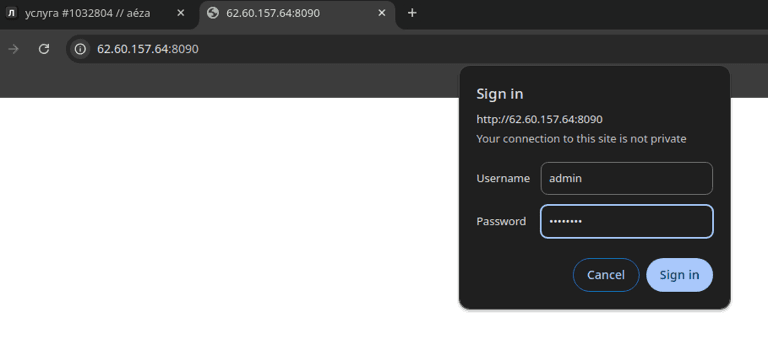
After going to the TorrServer panel link and entering the login and password specified in the "TorrServer.log" file, you will get to the main panel page.
To add movies and TV series, just press the green icon in the center of the screen:
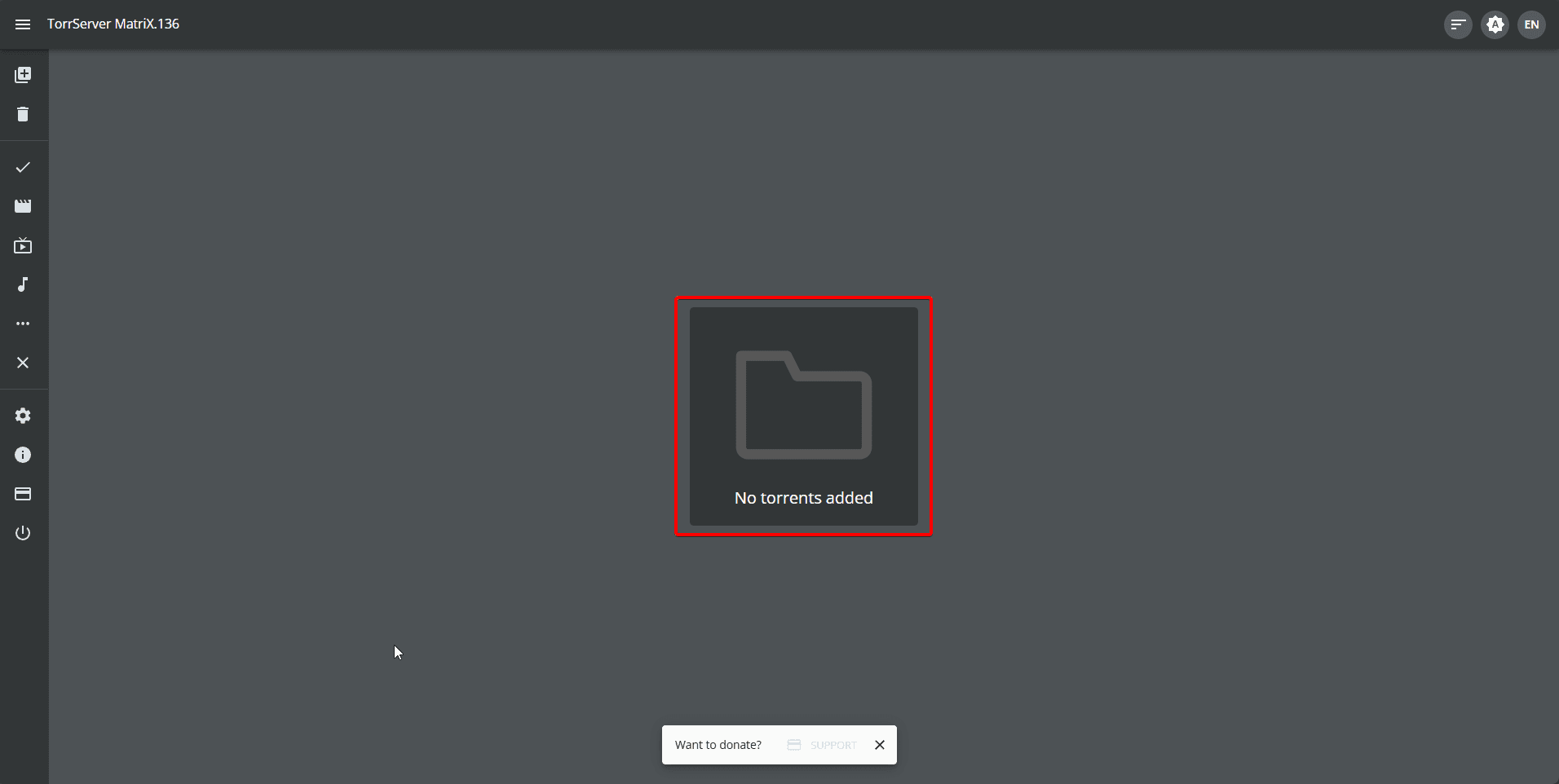
Then transfer the torrent file or paste the magnet link text (torrent file content).
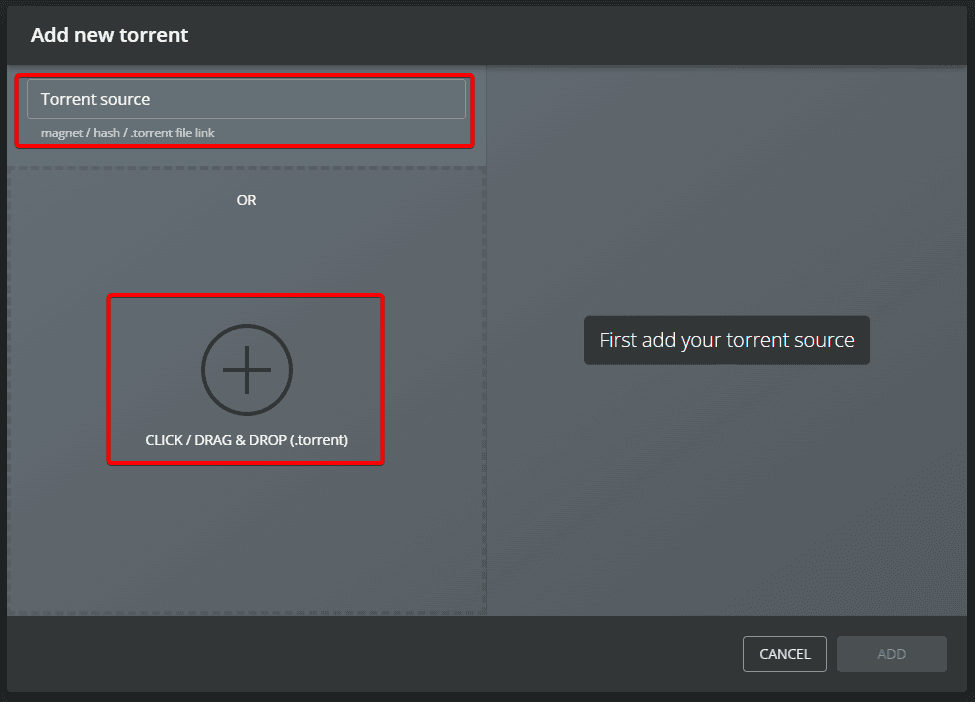
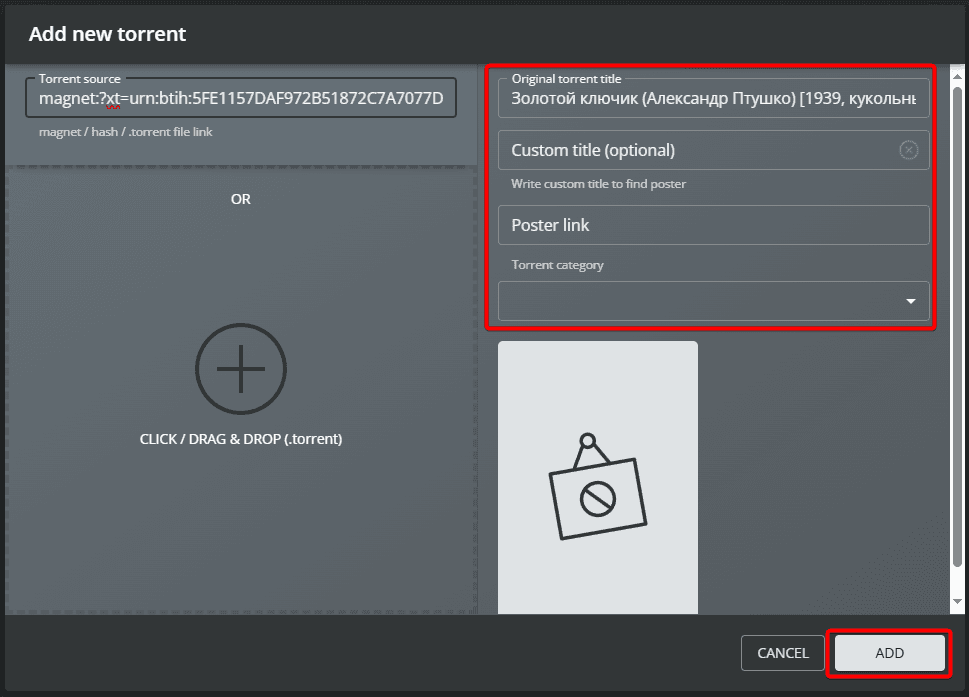
After adding the torrent file, you can change the file name on your server, as well as set a cover for greater comfort in using TorrServer. Their presence is not mandatory. Click the "Add" button.
Next, you can download the playlist of the selected torrent to your PC:
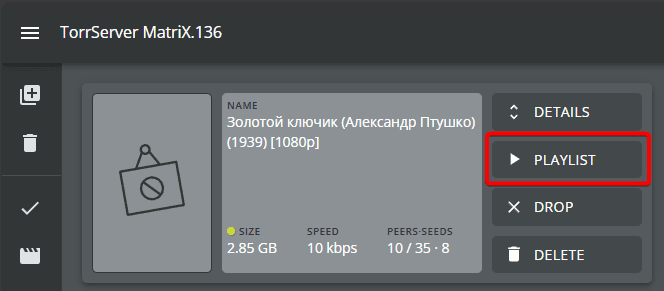
The downloaded .m3u file can be opened in the PotPlayer program and start watching the desired series, movie or video in the best quality live.

Changing authorization data in the TorrServer panel
For security, by default when installing the pre-installed software script TorrServer, authorization in the control panel by password is enabled.
To change the login data for the panel, you can change the contents of the file on the server:
/opt/torrserver/accs.db
For example, by executing a command from the server console:
nano /opt/torrserver/accs.dbThen simply replace the login and password data in the format {"admin": "password"} with the desired username and password:
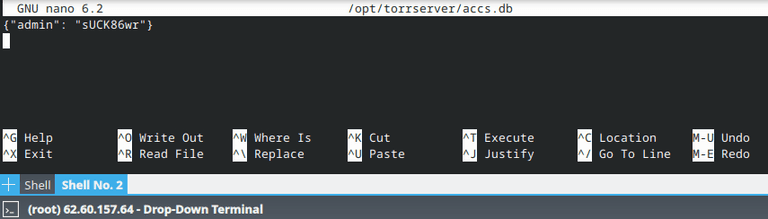
Then after saving the file, you need to restart the TorrServer service:
systemctl daemon-reload
service torrserver restart
Changing the port for the TorrServer panel and disabling authorization in the web panel
To change the port on which the TorrServer web panel is located, it's enough to change the configuration file: /etc/systemd/system/torrserver.service
For example, by executing a command from the server console:
nano /etc/systemd/system/torrserver.serviceIn this file in the line:
ExecStart = /opt/torrserver/torrserver -d /opt/torrserver -p 8080 --httpauthTo disable authorization in the web panel, it's enough to remove the --httpauth key from the line:
ExecStart = /opt/torrserver/torrserver -d /opt/torrserver -p 8080 --httpauthAfter editing, the line should look like this:
ExecStart = /opt/torrserver/torrserver -d /opt/torrserver -p 8080After making changes and saving the configuration file, you need to restart the TorrServer service:
systemctl daemon-reload
service torrserver restart
Updating TorrServer
In case of obsolescence of the installed TorrServer version, it's enough to enter the following command in the console of the server and it will be automatically updated to the current version and restarted:
dir="/opt/torrserver"
bin="torrserver"
systemctl stop torrserver.service
rm -r ${dir}/${bin}
dir="/opt/torrserver"
mkdir -p ${dir}
architecture=""
case $(uname -m) in
 i386) architecture="386" ;;
 i686) architecture="386" ;;
 x86_64) architecture="amd64" ;;
 arm)  dpkg --print-architecture | grep -q "arm64" && architecture="arm64" || architecture="arm7" ;;
esac
url=$(curl --silent https://github.com/YouROK/TorrServer/releases/ | grep TorrServer-linux-${architecture} | head -1 | awk -F \" '{print $2}')
wget -O ${dir}/${bin} https://github.com/${url}
chmod +x ${dir}/${bin}
systemctl start torrserver.service
echo -e "\nTorrServer Online - update completed\n" >/dev/pts/0