
Setting up recommended VPN clients
This instruction will describe step-by-step setup of our recommended VPN clients
Happ (Android)
Download and install the application: https://www.happ.su/main/ru
Copy the VLESS key that starts with vless:// from the service or 3x-ui/marzban panels:

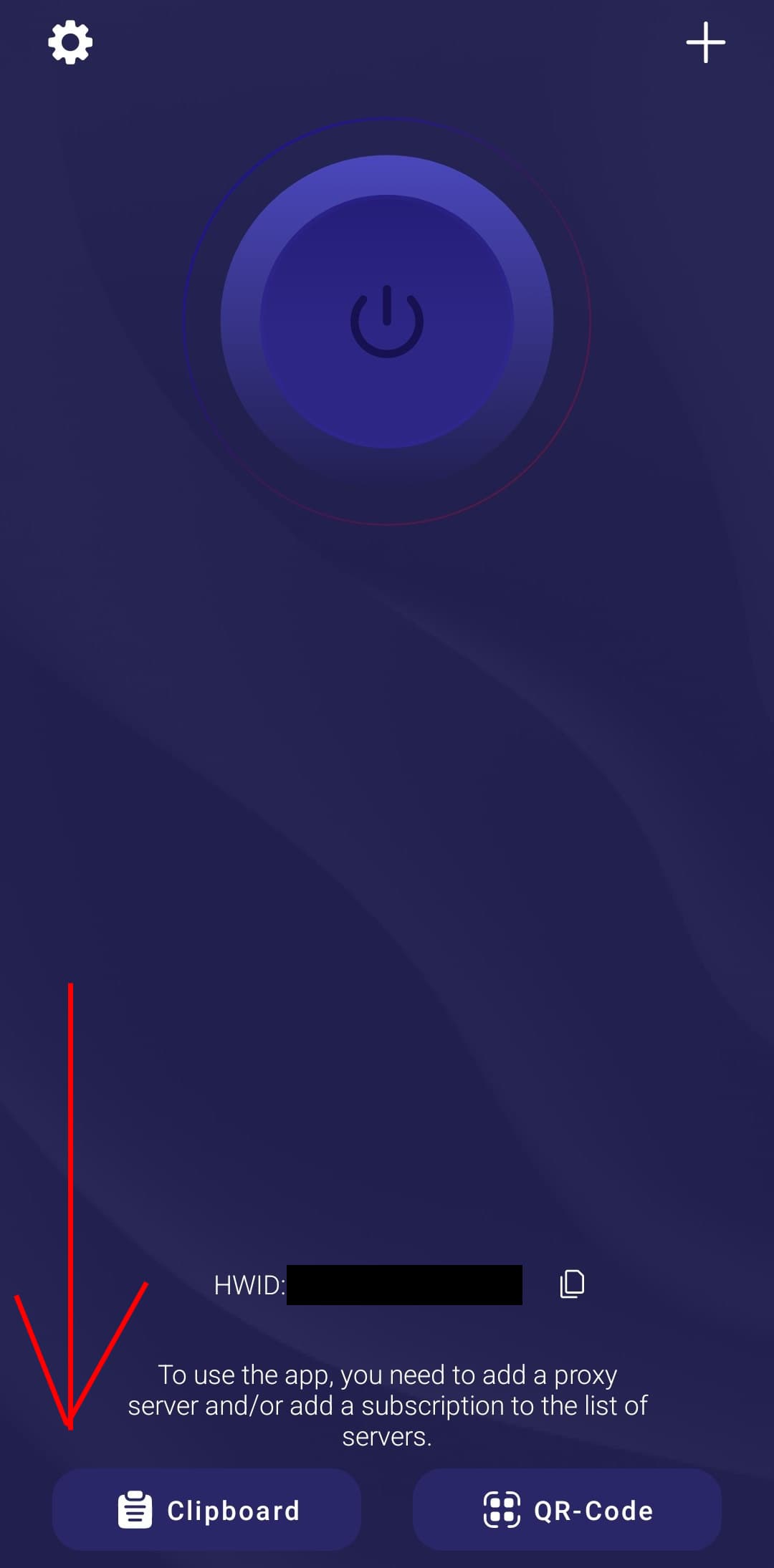
Go to the application and paste the key from clipboard:
Then press the enable button:
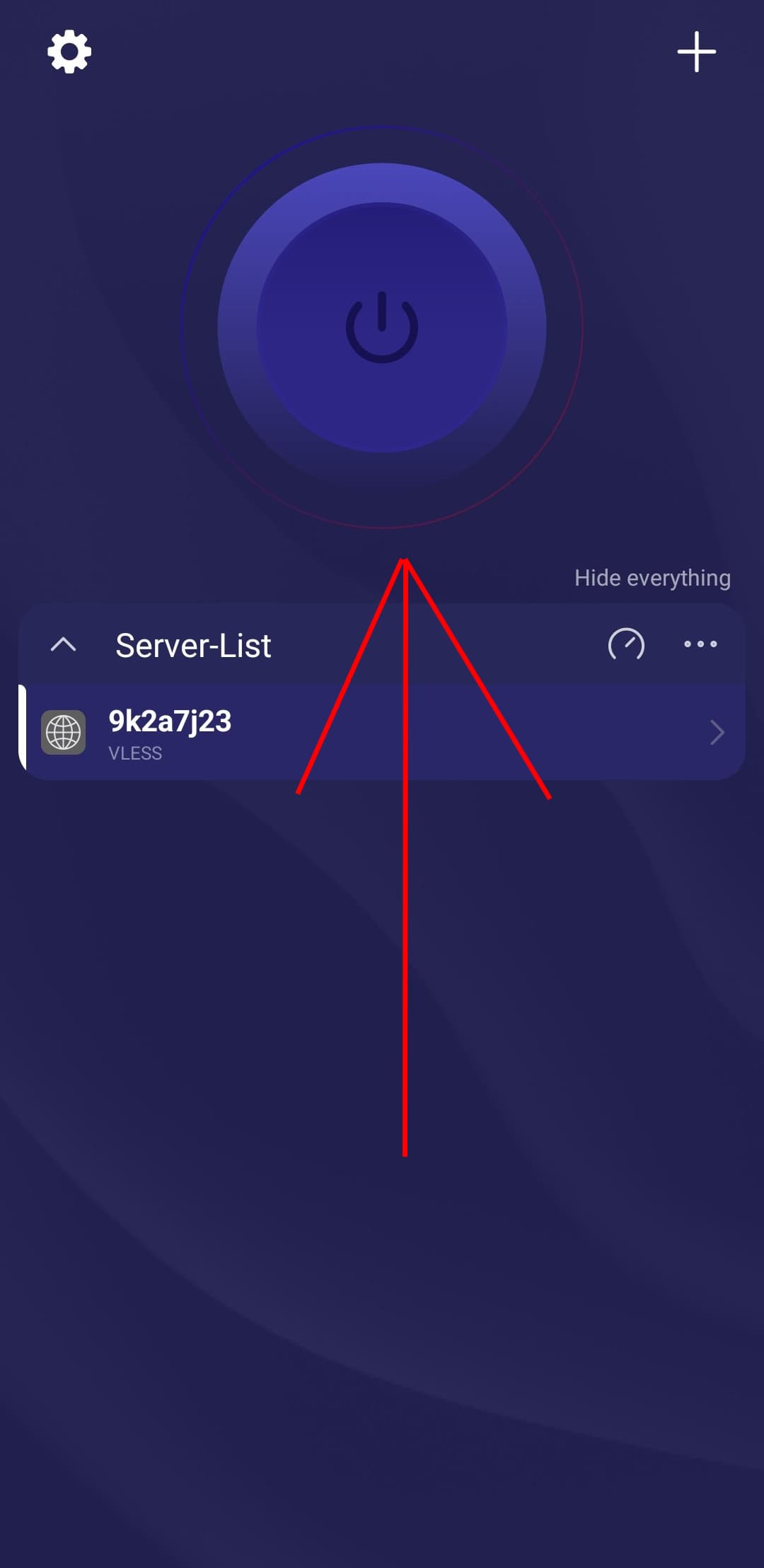
Done! VPN is enabled!
V2RayTun (iOS, MacOS)
Download and install the application: https://apps.apple.com/kz/app/v2raytun/id6476628951
Copy the VLESS key that starts with vless:// from the service or 3x-ui/marzban panels:

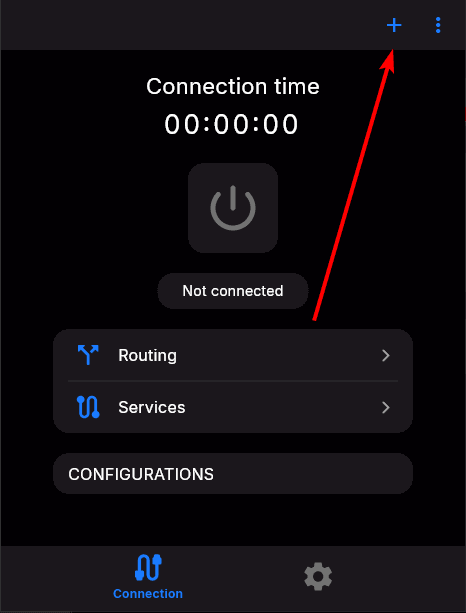
Go to the application and paste the key from clipboard:
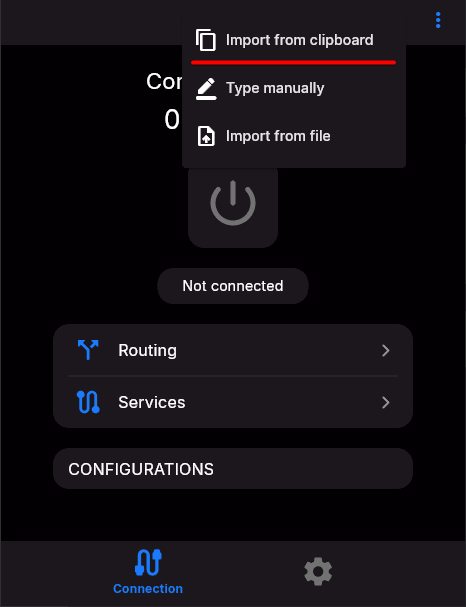
Then press the enable button:
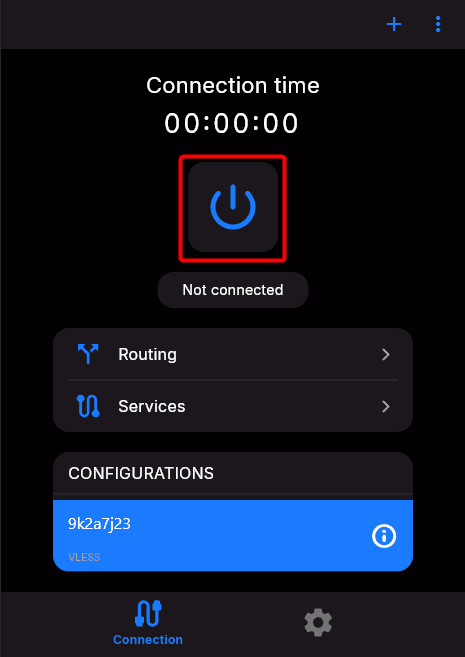
Done! VPN is enabled!
Nekoray (Windows, Linux)
Download links for Nekoray
Here is a list of all available download links for Nekoray, divided by operating systems:
-
Nekoray for Windows (64-bit) Download This is the version for 64-bit Windows systems. Suitable for most modern computers running Windows 10 or 11.
-
Nekoray for Linux (64-bit, archive) Download This is an archive version for Linux users that needs to be unpacked before use.
-
Nekoray for Debian/Ubuntu (64-bit, .deb package) Download This is a .deb format version for Debian and Ubuntu based systems. Suitable for convenient installation through the package manager.
Installing and configuring Nekoray on Windows
Downloading Nekoray
First, you need to download the program at the link:
Extracting the archive
After completing the download, perform the following actions:
- Find the downloaded file nekoray-3.26-2023-12-09-windows64.zip.
- Right-click on the file and select "Extract all..." or use an archiver such as WinRAR or 7-Zip to extract the contents to a convenient location on your computer.
Launching the program
- Open the folder with the extracted files.
- Find the
nekoray.exefile. - Double-click on it to launch the program.
The program does not require separate installation and is ready to use immediately after launch. However, some additional settings will be required for stable operation.
Initial Nekoray setup on Windows
Selecting sing-box core: When first launching, be sure to select the sing-box core. This is necessary for correct operation.
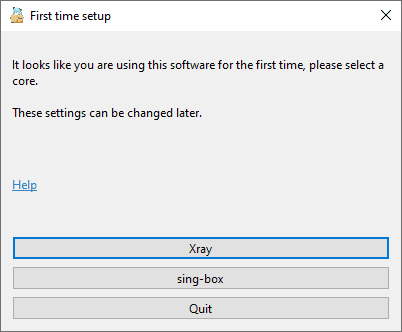
If you previously installed Nekoray and selected a different core, you will need to:
- Go to Basic settings.
- Open the Core section.
- Select the sing-box core.
Adding VPN link:
- Copy the VPN connection link.
- Paste it into Nekoray using Ctrl + V or through the menu:
-
- Click the Server button.
-
- Select the Add profile from clipboard option.
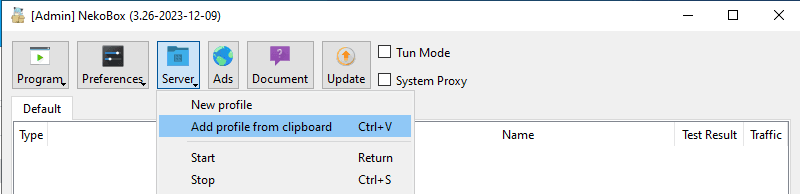
Activating TUN mode and launching:
- Activate TUN Mode.
- Launch the configuration by right-clicking on the config and selecting the Launch option.
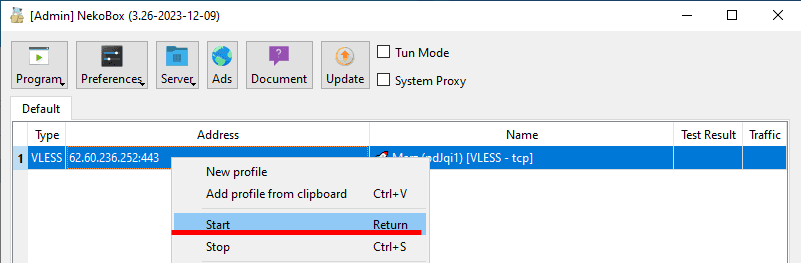
Now Nekoray is configured and proxies all connections. For convenience, you can enable Nekoray autostart.
To do this, follow these steps:
Click the "Program" button.
Check the two items:
- "Start with system".
- "Remember last profile".
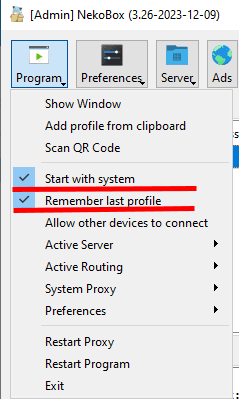
After these actions, Nekoray will automatically start with the system.
OpenVPN - Creating a personal VPN
OpenVPN is a high-speed solution for encrypted connections between server and user, allowing you to protect personal data and bypass local site blocks
Creating SSH keys and connection
SSH keys will allow you to protect servers through multi-factor login verification. We recommend installing!