
Universal client for modern VPN protocols - NekoRay
Nekoray is a powerful and convenient software for working with modern VPN protocols.
Nekoray is software that supports working with several network protocols and helps users bypass blocks and improve security and privacy when working on the internet.
Main features
- Support for multiple protocols: Nekoray software supports several key protocols that are often used to bypass censorship and ensure privacy. The list of supported protocols includes:
- VMess: a proprietary protocol from V2Ray, designed to work in limited internet conditions.
- VLESS: an improved version of VMess with higher performance and lower latency.
- Shadowsocks: a popular open-source proxy protocol that is used to bypass internet blocks and improve privacy.
- Trojan: a protocol developed to encrypt traffic through TLS to mask traffic as regular HTTPS, making it difficult to detect.
- Socks5: a protocol that provides traffic proxying at the socket level. Often used to work with any applications that require a proxy.
-
Ease of use: the program interface is intuitive even for inexperienced users. It offers easy server management, connection configuration capability, and simple switching between different protocols.
-
Cross-platform: Nekoray is available on various operating systems, including Windows, Linux, Android, making it a universal solution for users with different platforms.
-
Updates and support: the development team actively supports and updates the software, adding new features and fixing bugs.
-
Security and encryption: One of the key aspects of Nekoray is attention to user security. Traffic encryption and support for modern protocols make it a reliable choice for those who want to protect their data.
-
Configuration flexibility: Depending on user needs, Nekoray allows you to configure connection parameters such as routing selection, encryption selection, and data compression.
Download links for Nekoray
Here is a list of all available download links for Nekoray, divided by operating systems:
- Nekoray for Windows (64-bit) Download
This is the version for 64-bit Windows systems. Suitable for most modern computers ennning Windows 10 or 11.
- Nekoray for Linux (64-bit, archive)
This is an archive version for Linux users that needs to be unpacked before use.
- Nekoray for Debian/Ubuntu (64-bit, .deb package)
This is a .deb format version for Debian and Ubuntu based systems. Suitable for convenient installation through the package manager.
Installing and configuring Nekoray on Windows
Downloading Nekoray
First, you need to download the program at the link:
Extracting the archive
After completing the download, perform the following actions:
- Find the downloaded file nekoray-3.26-2023-12-09-windows64.zip.
- Right-click on the file and select "Extract all..." or use an archiver such as WinRAR or 7-Zip to extract the contents to a convenient location on your computer.
Launching the program
- Open the folder with the extracted files.
- Find the
nekoray.exefile. - Double-click on it to launch the program.
The program does not require separate installation and is ready to use immediately after launch. However, some additional settings will be required for stable operation.
Initial Nekoray setup on Windows
Selecting sing-box core:
When first launching, be sure to select the sing-box core. This is necessary for correct operation.
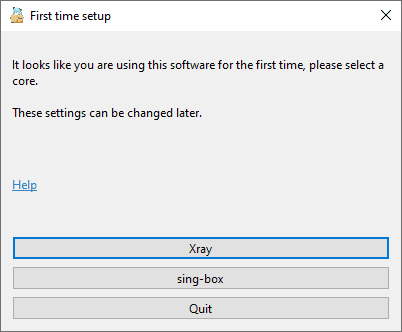 If you previously installed Nekoray and selected a different core, you will need to:
- Go to Basic settings.
- Open the Core section.
- Select the sing-box core.
Adding VPN link:
- Copy the VPN connection link.
- Paste it into Nekoray using Ctrl + V or through the menu:
-
- Click the Server button.
-
- Select the Add profile from clipboard option.
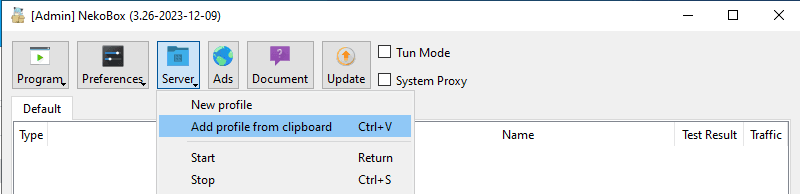
- Select the Add profile from clipboard option.
Activating TUN mode and launching:
- Activate TUN Mode.
- Launch the configuration by right-clicking on the config and selecting the Launch option.
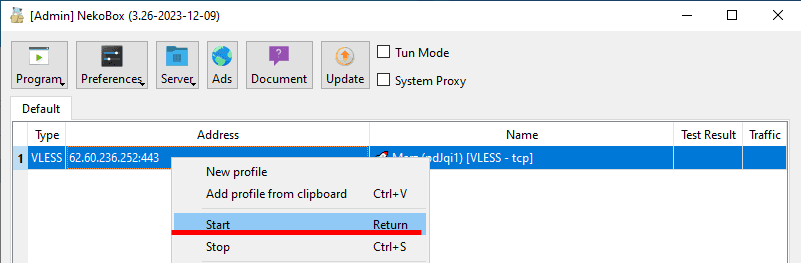
Now Nekoray is configured and proxies all connections. For convenience, you can enable Nekoray autostart.
To do this, follow these steps:
Click the "Program" button.
Check the two items:
- "Start with system".
- "Remember last profile".
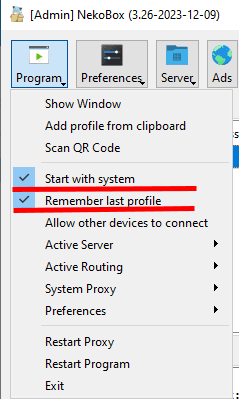
After these actions, Nekoray will automatically start with the system.
Proxying individual processes
To configure proxying of certain processes, follow these steps:
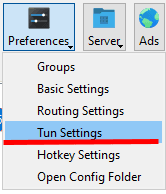
Click the "Settings" button.
Select the "TUN Mode Settings" item.
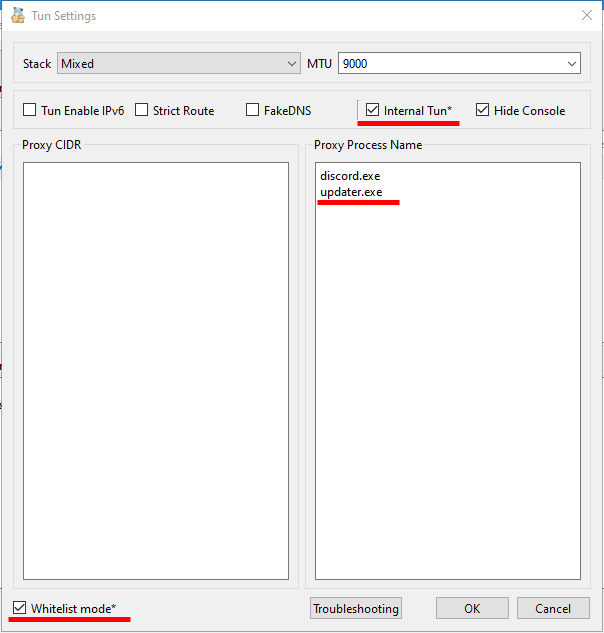
In TUN settings, uncheck the "Built-in TUN*" option.
Enable "Whitelist Mode".
Specify which processes need to be proxied.
For example, to proxy only Discord, add discord.exe and updater.exe to the list, then click "OK".
After performing these actions, Nekoray will proxy only Discord, and all other connections will pass without VPN. This is especially important for online games.
If you want to proxy browsers, use the following process names:
- Google Chrome:
chrome.exe - Yandex Browser:
browser.exe - Mozilla Firefox:
firefox.exe - Microsoft Edge:
msedge.exe - Opera Browser:
opera.exe - Safari (Windows):
safari.exe - Brave Browser:
brave.exe
Setting up VLESS in Marzban
Marzban is a panel for creating connection configs to proxies of various protocols such as VLESS, VMESS, Trojan, Shadowsocks. In this instruction, we will consider connection via VLESS protocol.
OpenVPN - Creating a personal VPN
OpenVPN is a high-speed solution for encrypted connections between server and user, allowing you to protect personal data and bypass local site blocks