
SSH and SFTP connection
Connection to servers based on Linux OS is carried out using SSH/sFTP protocols. Let's figure it out!
How to connect?
To connect to a server with Linux OS, you will need SSH and SFTP clients. Links to the most popular clients for Windows!
Links to the most popular clients for Windows!
-
PuTTY — SSH client.
-
Termius — alternative SSH client.
-
FileZilla — FTP client.
-
WinSCP — alternative FTP client.
-
Bitvise — SSH and SFTP client.
-
MobaXTerm — SSH and SFTP/FTP client.
In this case, we recommend using Bitvise or WinSCP for SSH/SFTP connection, however, as the most suitable option for beginners, below we will analyze the connection through FileZilla.
Instructions
Connection data can be viewed in the email message or select the service in the personal account and click on it, opening the service page.
Identical data is used for SFTP and SSH connection.
Procedure for connecting to VDS/VPS Linux via SSH (Putty)
In the Host Name field — specify the IP address of your server.
Then enter the port. By default this is — 22
Click the button to connect — Open.
 Then you need to specify the username (by default this is — root).
Then we enter the password.
Password in PuTTY is entered with invisible characters!
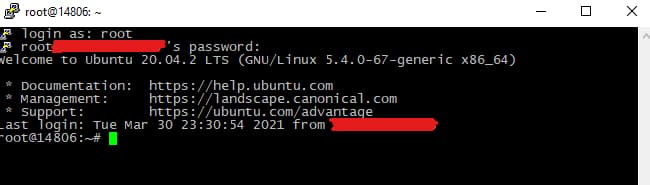
To paste text in PuTTY, you need to press RMB (right mouse button) for Windows.
Procedure for connecting to VDS/VPS Linux via SFTP for file transfer (Filezilla)
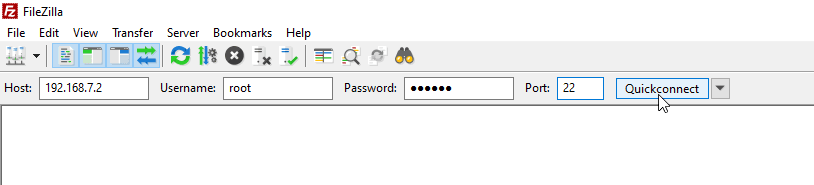
In the Host field — specify the IP address of your server.
Then enter the port. By default this is — 22
Enter the username. By default this is — root
Click the button to connect - Quick connection
Then we agree to accept the key
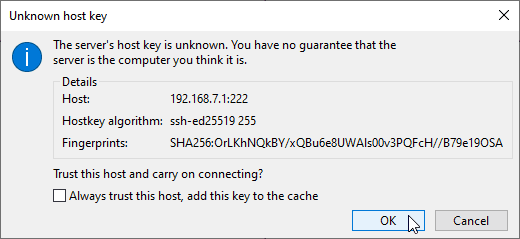
Done! On the right will be server files and folders, on the left - local ones.