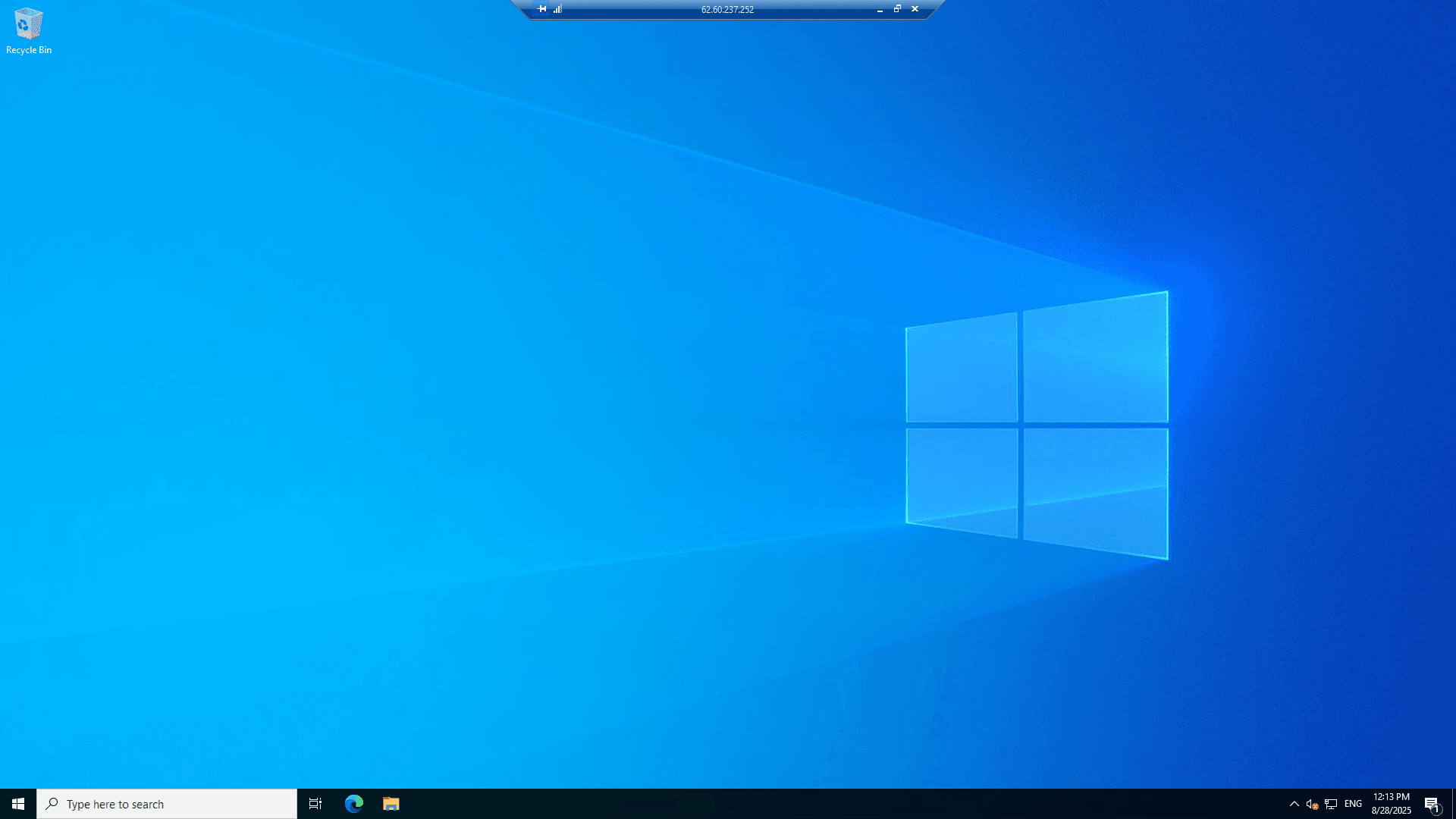
RDP connection
Connection to servers with Windows OS is carried out by default through RDP (Remote Desktop Protocol).
Depending on the version and localization of the system, the login may be different. Usually it's:
-
Administrator for most English language OS
-
Администратор for some Russian language systems.
-
Admin for Windows 10/11 systems.
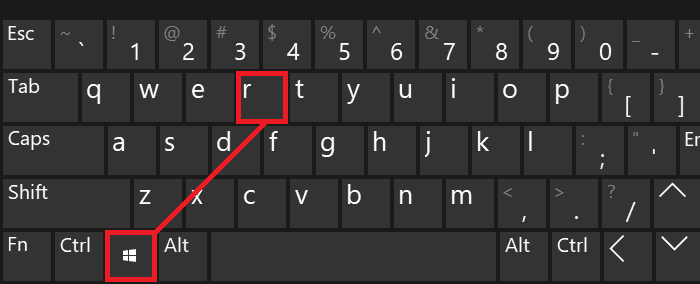
Use the key combination Win + R.
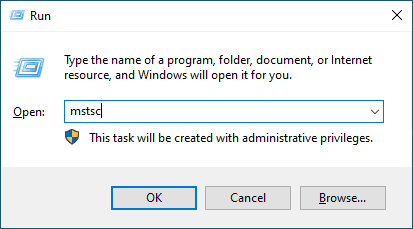
A window appears at the top that offers to enter a command for further execution, we write mstsc.
Then a Windows mini-application opens for connecting to servers via RDP protocol. In the "Computer" line, specify the IP address of the server to which we need to connect.
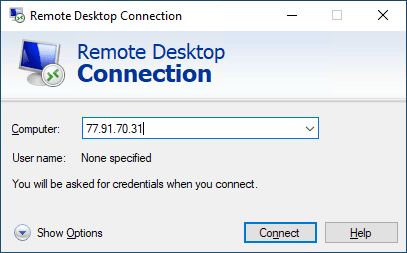
The username Administrator is specified by default. Next, we open additional settings by clicking the Show options button.

In the opened menu, we can set a checkbox, thanks to which the program will request new authorization data on the server each time.
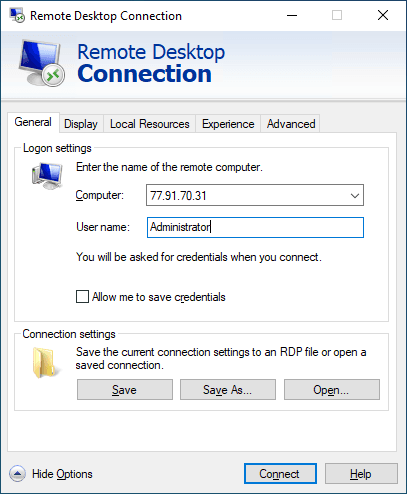
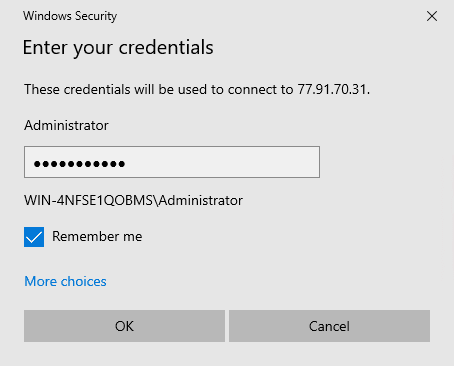
We try to make the first connection. Click the Connect button. It is necessary to enter the server password, enter it and check the "Remember me" box:
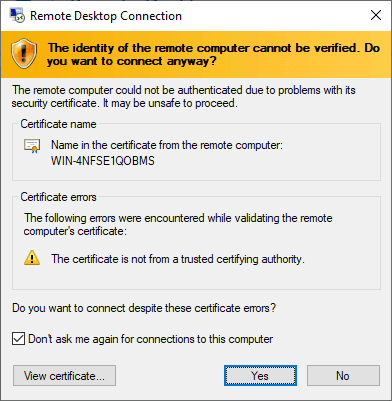
We confirm the connection to the server, set the checkbox so that the request is not displayed further and click "Yes".
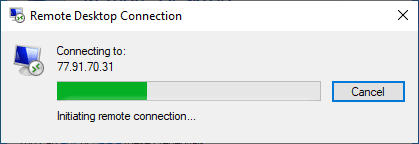
The process of connecting to the remote server begins:
After connection, the desktop will open, this is our workspace.